Meshy AI Review 2026: Is It the Best AI 3D Model Generator?
We tested Meshy AI's text to 3D and image to 3D generators, its free tier, model downloads, and 3D printing output. Here's who Meshy is actually for — and where it still needs a human.
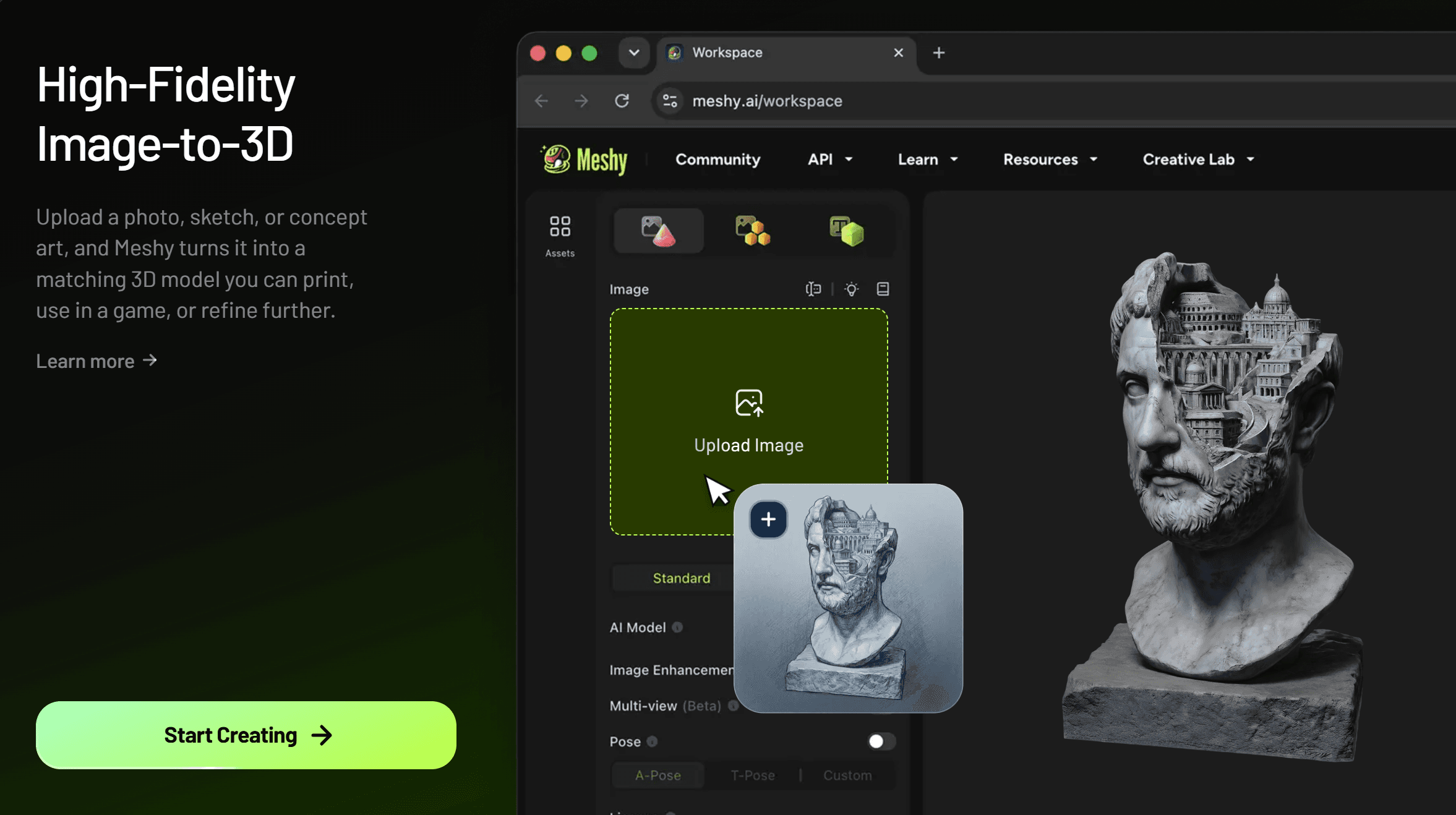
Meshy AI is a web-based AI 3D model generator that turns text descriptions and images into textured 3D models in minutes. You type 'a wooden treasure chest with iron bands,' or upload a photo of a sneaker, and the platform returns a model you can download, edit, and use in game engines, renders, or a 3D printer. It is aimed at game developers who need placeholder or hero props, 3D printing hobbyists who want custom miniatures and figures, and creators who would otherwise spend hours modeling in Blender. The pricing runs freemium: a free tier with monthly credits, and paid plans for more generations. The short verdict: for speed and accessibility, Meshy is one of the best AI 3D model generators available today; for production-ready topology and print-ready geometry, expect to do cleanup work yourself. If you want to see it in action, the free tier is the fastest way to find out whether it fits your workflow.
What Is Meshy AI?
Meshy AI is an AI 3D model generator that runs entirely in the browser. Instead of learning polygonal modeling, rigging, or UV unwrapping, you describe what you want — or upload a reference image — and the platform generates a textured 3D asset. That positioning matters: Meshy is not trying to replace Blender or Maya. It is trying to replace the first four hours of a modeling session, the part where a blank viewport stares back at you.
The platform's two core pipelines are text to 3D and image to 3D. Text to 3D turns a prompt into a model — describe an object, character, or prop, and the AI generates a 3D mesh with a texture applied. Image to 3D takes a photograph or concept art and reconstructs it as a 3D asset, which is the fastest route when you already have a clear visual reference. Both pipelines output downloadable models in the standard formats that game engines, 3D printers, and editing software expect, which is what makes Meshy practical rather than a tech demo.
Who is it for? Three groups get the most value. Game developers use it for concept exploration and quick assets. 3D printing hobbyists use it for custom miniatures, busts, and figures that would take days to sculpt by hand. And indie creators — VR developers, AR filters, digital artists — use it to skip the modeling bottleneck entirely. If your workflow starts with 'I need a 3D thing I do not know how to model,' Meshy is built for you.
Meshy AI Features
Meshy's feature set is built around the two generation pipelines, with the surrounding tooling — texturing, refinement, and export — doing the heavy lifting that makes raw generations usable.
Text to 3D
Text to 3D is the feature most people try first, and it is the easiest to form an opinion about. Type a prompt — an object, a character, a prop, a piece of furniture — and within minutes Meshy returns a generated mesh with an applied texture. The quality ceiling is genuinely impressive for organic and stylized subjects: characters, creatures, and props come out recognizable and often usable as-is. The floor is equally real: complex mechanical objects, precise real-world products, and anything requiring exact measurements tend to come out approximate. Prompt quality drives results here more than any other factor — describing materials, style, and silhouette explicitly produces noticeably better models than vague descriptions.
Image to 3D
Image to 3D is the more practical pipeline for most real workflows, because most people already have a reference: product photos, concept art, character designs. Upload the image and Meshy reconstructs it as a 3D model, using the image for both geometry and texture. The best results come from clear images with a single subject against a simple background — the same rules that apply to any photogrammetry-adjacent tool. The limitation is the obvious one: a flat photo contains no information about the back of the object, so the AI fills in the unseen side. For front-facing assets, signage, or game props where the back side matters less, that is fine; for a fully detailed 360-degree character, expect to do cleanup.
AI 3D Texturing
Texturing is where AI generation quietly saves the most time, because manual UV unwrapping and texture painting is the slowest part of traditional modeling. Meshy generates textures along with the mesh, and includes tools for refining and regenerating them — change the style, adjust the colors, or re-roll the texture without touching the geometry. For game assets and renders, that is a meaningful chunk of the modeling workflow removed. For print-focused users, the texture matters less (a printer only cares about geometry), but for anyone targeting screens, the texturing pipeline is arguably the most underrated part of the platform.
3D Model Generation
The generation engine itself is the product's core, and the honest summary is: stylized and organic generation is strong, hard-surface and mechanical precision is weaker. Meshy's models trend toward smooth, sculpted, game-ready aesthetics — which suits characters, creatures, and props beautifully, and suits mechanical parts, replicas of real products, and dimensional accuracy less so. The generation also has a signature look: AI-generated models have a softness and a slightly blobby quality that experienced 3D artists recognize at a glance. That is not a fatal flaw — most of it smooths out with a quick decimation pass or a retopology step — but it is the trade you accept for generation speed.
3D Printing
Meshy supports STL export, which puts it directly in the 3D printing workflow — custom miniatures, busts, ornaments, and props are a core use case for the platform's community. The printing pipeline is covered in detail below, but the short version: Meshy is genuinely useful for print-focused creators, with the caveat that generated models usually need a quick pass through a slicer's repair tools before they print cleanly. For hobbyists printing figurines rather than engineering parts, that tradeoff is almost always worth it.
Is Meshy AI Free?
Yes, with the standard freemium structure. Meshy offers a free tier that includes a monthly allowance of generation credits — enough to test both pipelines, generate a handful of models, and form a real opinion. The credits refresh periodically, so the free tier is a recurring trial rather than a one-time demo, which makes it genuinely usable for light hobby work. Paid plans raise the credit ceiling, add faster queues, and unlock higher tiers of usage for people who generate models daily.
The honest framing on pricing: the free tier exists to answer the question 'does this tool work for my workflow?' and it answers that question honestly. If you only need a model occasionally — a miniature now, a game prop next month — you may never need to pay at all. If you are generating assets as part of a production pipeline, the paid tiers are where the credit math starts to make sense. The specific credit counts and plan prices change over time, so check the current pricing page rather than relying on any number quoted elsewhere.
Can You Download 3D Models From Meshy AI?
Yes — and this is the feature that separates practical AI model generators from tech demos. Every model you generate on Meshy is downloadable, including on the free tier, in the standard formats that real workflows expect: GLB and FBX for game engines and 3D software, OBJ for broad compatibility, STL for 3D printing, and USDZ for Apple's AR ecosystem. The download button is not locked behind a paywall, which is worth stating plainly because it is the first question most people ask.
For people searching for free 3D models and free 3D downloads, Meshy fits into that picture in a specific way: the models you generate are yours to download and use, subject to the platform's terms, which makes the free tier effectively a small monthly allowance of free 3D model generation. That is a different value proposition from downloading models from a shared library — every model is custom to your prompt rather than something ten thousand other people downloaded — but it scratches the same itch for custom assets, and the license terms for commercial use are covered in the platform's terms of service.
What can you do with the downloaded files? The practical routes are well-trodden: open them in Blender for cleanup and editing, import them into Unity or Unreal as game assets, drop them into a slicer for 3D printing, or use them in renders and AR projects. The format support means you rarely need a conversion step — Meshy outputs what the destination tool expects.
Is Meshy AI Good for 3D Printing?
This is the section most readers arrive for, and the answer is: yes, with a short list of things to check before you hit print. Meshy's STL export drops straight into any slicer — Cura, PrusaSlicer, Bambu Studio — and the custom miniature, bust, and prop workflows that 3D printing communities love are exactly what the tool does best. A one-of-a-kind tabletop figure that would take a sculptor a weekend arrives in minutes.
The pre-print checklist matters more here than with hand-modeled files, because AI generation is not thinking about printability. First, check model integrity: generated meshes can contain holes or non-manifold geometry that confuse slicers. Most slicers flag these automatically, and a repair pass — in the slicer itself or a tool like Meshmixer or Blender's mesh tools — fixes the vast majority. Second, check overhangs and islands: AI models are sculpted with screens in mind, not gravity, so floating strands and unsupported overhangs are common. Third, check scale: Meshy has no idea whether you want a 30mm miniature or a 300mm statue, so set the dimensions in the slicer yourself.
The FDM versus resin question applies to Meshy output the same way it applies everywhere. FDM printers handle props, terrain, and larger figures well, and a bit of layer-line texture rarely matters on an organic model. Resin printers are where Meshy models shine — the soft, sculpted look that reads as 'AI-generated' on a screen becomes a genuine advantage in resin, where smooth organic curves print beautifully and miniature-scale detail survives. If you are choosing a printer for this workflow, our resin 3D printer comparison covers the machines that pair best with AI-generated sculpts.
One more honest note for print-focused users: generation quality varies by subject. Organic shapes — creatures, busts, ornaments — are the strong suit. Hard-surface, mechanical parts with exact tolerances are the weak suit, and no amount of slicer tuning fixes geometry that was approximate from the start. For figurines, Meshy is a legitimate shortcut; for functional parts, CAD remains the right tool.
Is Meshy AI Good for Game Development?
For game developers, Meshy is best understood as a concept-to-asset accelerator, not a final-art pipeline. The strongest workflow is iterative: generate ten variations of a prop or character concept, pick the two that fit, and refine them in Blender. That is genuinely valuable — concept exploration that used to take a week of modeling now takes an afternoon of prompting — and it is where Meshy earns its place in a production pipeline.
The Blender handoff is the most common route: import the GLB or FBX, then clean up. The cleanup work is the honest part of this section. AI-generated models carry three issues that game pipelines notice. First, topology: generation produces dense, irregular triangle soups rather than the clean quads that animate and deform well. For static props, that barely matters; for characters that rig and animate, retopology is mandatory. Second, polygon counts: generated models skew high-poly, so a decimation pass is usually needed to hit mobile or VR budgets. Third, UV quality varies — usable for many purposes, but worth checking before you trust a generated model with a detailed texture workflow.
In Unreal Engine and Unity, the import path is straightforward — both engines read FBX and GLB natively — and for background props, set dressing, and placeholder art, Meshy models drop in with minimal friction. The limitation worth internalizing: AI generation will not replace the character artist or the hard-surface modeler in a serious production. What it replaces is the part where you pay an artist to explore twenty concepts of a background prop. Teams that use Meshy that way report it saving real hours; teams that expect final-quality hero assets from a text prompt are the ones who write the negative reviews.
Meshy AI Pros and Cons
| Pros | Cons |
|---|---|
| Easy to use | Some models need cleanup |
| Fast generation | Topology isn't always perfect |
| Text to 3D | Complex models may be high-poly |
| Image to 3D | Professional workflows may need Blender |
| Useful for 3D printing | Free usage is limited |
Meshy AI vs Tripo
Tripo is the other name that comes up in every AI 3D model generator conversation, and the comparison is close because the two platforms solve the same problem with the same core features: text to 3D, image to 3D, and downloadable outputs. The differences are more about emphasis than capability. Meshy leans into the creator workflow — texturing tools, refinement options, and a community library of generated models — which makes it feel like a platform for artists exploring ideas. Tripo positions itself more toward the technical side of generation, with a strong focus on the underlying model quality and API access for developers who want generation inside their own products.
In practice, both are good enough that the decision usually comes down to workflow fit rather than raw quality. If you are a solo creator, a game dev exploring concepts, or a 3D printing hobbyist, Meshy's all-in-one feel and the free tier's generosity make it the friendlier starting point. If you are a developer evaluating an API to embed generation into your own app, or you care primarily about raw generation quality benchmarks, Tripo deserves the side-by-side test. The honest move is to try both free tiers with the same prompt and compare the outputs on your own subjects — quality is subjective enough that your specific use case will decide faster than any review can.
We are publishing a full side-by-side breakdown — Meshy vs Tripo: Full Comparison — covering benchmark-style tests of both platforms on the same prompts. For now: Meshy for creators, Tripo for developers, and both for people who want to test before committing.
How to Use Meshy AI
The learning curve is one of the shallowest in 3D tooling — no installs, no dependencies, just a browser account. The full workflow:
- Create an account — the free tier is enough to start
- Choose Text to 3D or Image to 3D
- Upload an image or enter a prompt — be specific about materials and style
- Generate — the first pass typically takes a few minutes
- Edit — refine the mesh, regenerate or restyle the texture
- Download — GLB, FBX, OBJ, STL, or USDZ depending on where it is going
Frequently Asked Questions
What is Meshy AI?
Meshy AI is a browser-based AI 3D model generator that creates textured 3D models from text prompts or uploaded images. It is aimed at game developers, 3D printing hobbyists, and creators who want usable 3D assets without traditional modeling skills.
Is Meshy AI free?
Yes. The free tier includes monthly generation credits that refresh, which makes it a recurring trial rather than a one-time demo. Paid plans add more credits and faster generation. Specific credit counts and prices change over time, so check the current pricing page.
Is Meshy AI safe?
Meshy is a legitimate commercial platform with standard account security, and it runs entirely in the browser with no software to install. The practical cautions are the usual ones: use a unique password, read the terms of service before commercial use, and treat anything you generate as AI output subject to the platform's content and licensing policies.
Can Meshy create 3D models?
Yes — it is the core function. Text to 3D builds models from prompts, and image to 3D reconstructs models from reference images, with textures applied. The quality is strongest for stylized and organic subjects and weaker for precise mechanical parts.
Can Meshy convert images to 3D?
Yes. Upload an image and Meshy reconstructs it as a textured 3D model. Best results come from clear, single-subject images against simple backgrounds; a flat photo contains no information about the back of the object, so the unseen side is AI-generated and may need cleanup.
Can you download Meshy models?
Yes, including on the free tier. Meshy exports to GLB, FBX, OBJ, STL, and USDZ, covering game engines, 3D editing software, 3D printers, and Apple AR workflows without a conversion step.
Is Meshy good for 3D printing?
For figurines, miniatures, busts, and ornaments — yes, it is one of the strongest use cases, and the STL export drops straight into any slicer. Run a quick repair pass for mesh integrity, check overhangs, and set the scale yourself. For functional parts with exact tolerances, CAD remains the better tool.
Is Meshy better than Tripo?
They are close competitors solving the same problem. Meshy suits creators who want an all-in-one workflow with texturing tools and a community library; Tripo appeals to developers evaluating APIs and technical users focused on raw generation quality. Test both free tiers with the same prompt — your specific use case will decide faster than any review.
Compare the top picks
Our full rankings for the products covered in this guide.


